Dashboard Page
The Dashboard Page is a feature that lets you give site owners a dedicated page for your app—for configuration, status, or managing the integration—right from inside Grigora (or in a new tab, if you prefer). You choose a URL and whether it is shown embedded in the Grigora UI or as an external link. This page explains what the dashboard is, how it works, the difference between embedded and external, and how it is shown to the user.
What is the Dashboard Page?
When a site owner installs your app or clicks to manage an already-installed app, Grigora can show them a page that you host. That page is your dashboard page. You use it to:
- Let users configure your app (e.g. API keys, options, connected accounts).
- Show status, usage, or logs.
- Provide a single place to manage the integration without leaving Grigora (if you use embedded).
You configure one dashboard URL per app and choose how it is opened: embedded (inside Grigora in an iframe) or external (in a new tab or full redirect).
How does it work?
-
You set it up
In the Developer Portal, open your app → Settings tab → Dashboard Page. Turn the feature on, pick Embedded Link or External URL, and enter the URL. Save. -
When a user installs your app
After they approve OAuth and your app gets the authorization code:- Embedded: The user is taken to a Grigora page that loads your URL inside an iframe. Your page receives
code(and optionallystate) in the URL so your backend can exchange them for an access token. - External: The user is sent to your URL in the same tab (or new tab, depending on flow) with
codeandstatein the query string.
- Embedded: The user is taken to a Grigora page that loads your URL inside an iframe. Your page receives
-
When a user manages the app later
From the site’s dashboard (e.g. Settings → Apps / Extensions), they open your app.- Embedded: They stay on Grigora; your dashboard URL is loaded in an iframe (with token or code as applicable).
- External: Clicking to manage opens your URL in a new tab (or redirects there) with the same auth parameters.
So: your URL is always the same; only the context (iframe vs new tab) and the auth (code/state or existing token) change.
Where to configure it
In the Developer Portal, open your app and go to the Settings tab. The Dashboard Page section is where you enable the feature and set the URL.
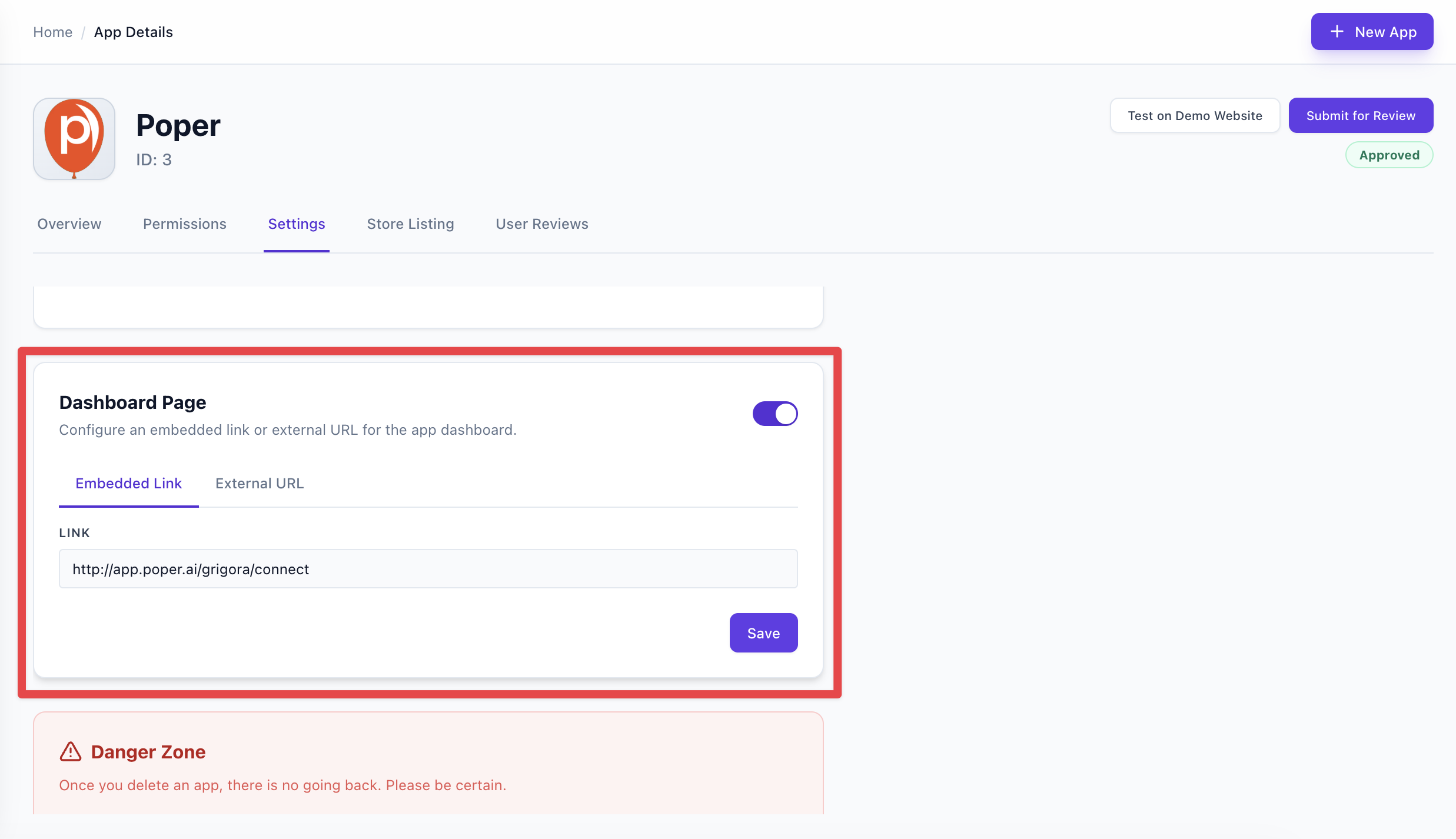
Use the Dashboard Page card: turn the toggle on, then choose Embedded Link or External URL and enter the URL.
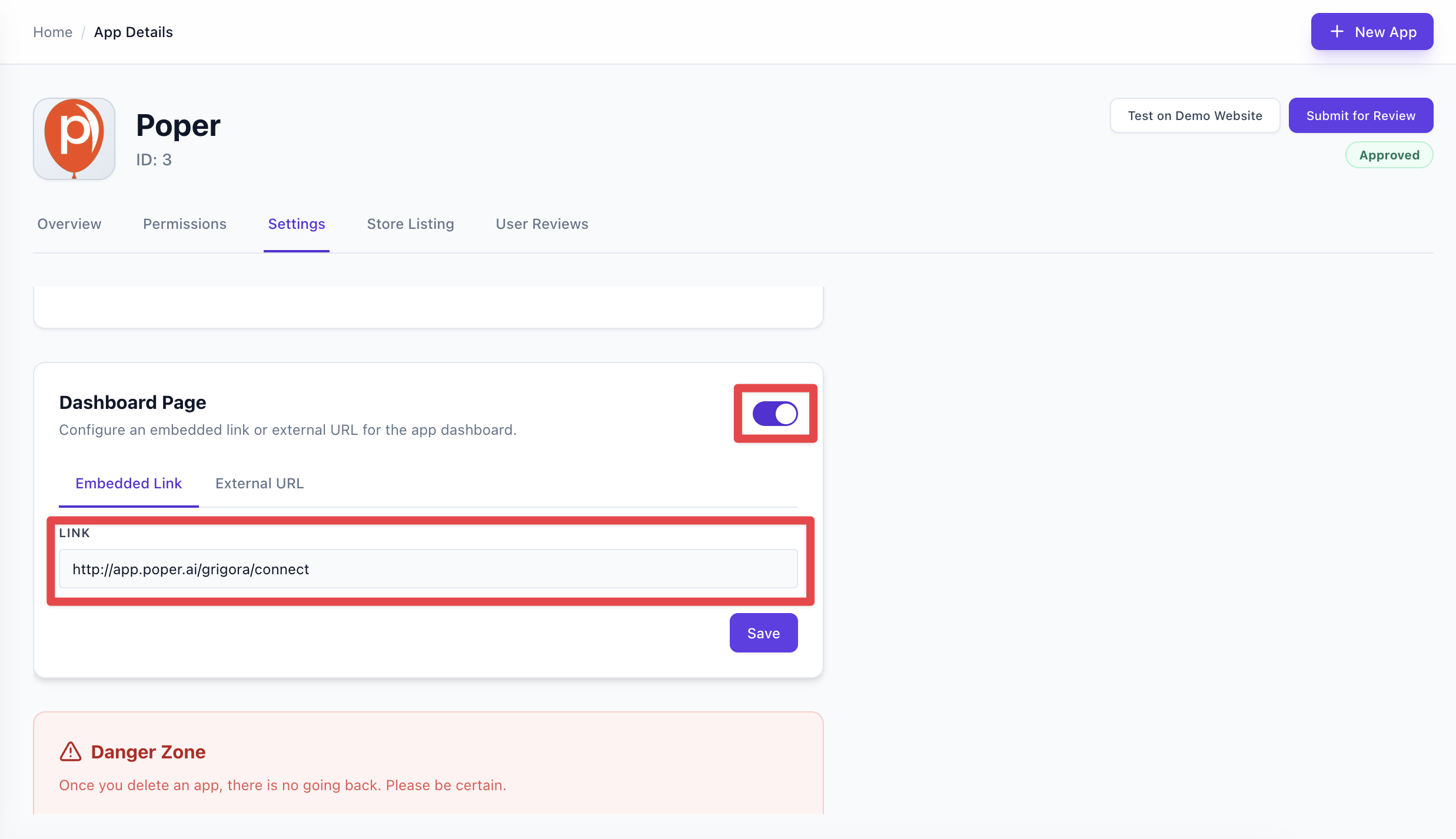
Embedded vs external
| Embedded | External | |
|---|---|---|
| What the user sees | Your URL is loaded inside an iframe on a Grigora page (e.g. /site/{projectId}/app/{appId}/embed). The user stays inside Grigora. | Your URL opens in a new tab or as a full-page redirect. The user leaves the Grigora tab. |
| Best for | Compact config UIs, status dashboards, and flows that work well in a framed layout. | Full-window flows, your own sign-in, or pages that don’t work well in an iframe. |
| Auth | Your page is loaded with code (and state) in the URL so you can exchange for an access token. When they open “Manage” later, the same page can receive a new code or rely on an existing token. | Same: your URL is called with code and state in the query string for the token exchange. |
| Technical | Your page must be frameable (no X-Frame-Options or CSP that blocks embedding). Use a responsive layout so it looks good in the iframe. | No framing requirements; you control the full window. |
- Embedded: The site owner never leaves the Grigora dashboard; your app’s UI appears in a panel. Good for a seamless “manage this app here” experience.
- External: The site owner is taken to your site in another tab. Good when you need more space or your own navigation/auth.
How it is shown to the user
Embedded dashboard
After the user authorizes your app (or when they open your app from the site’s Apps/Settings), they see a Grigora page whose main content is an iframe pointing at your dashboard URL. The address bar stays on Grigora (e.g. build.grigora.co/site/.../app/.../embed). Your page is the content inside that frame.
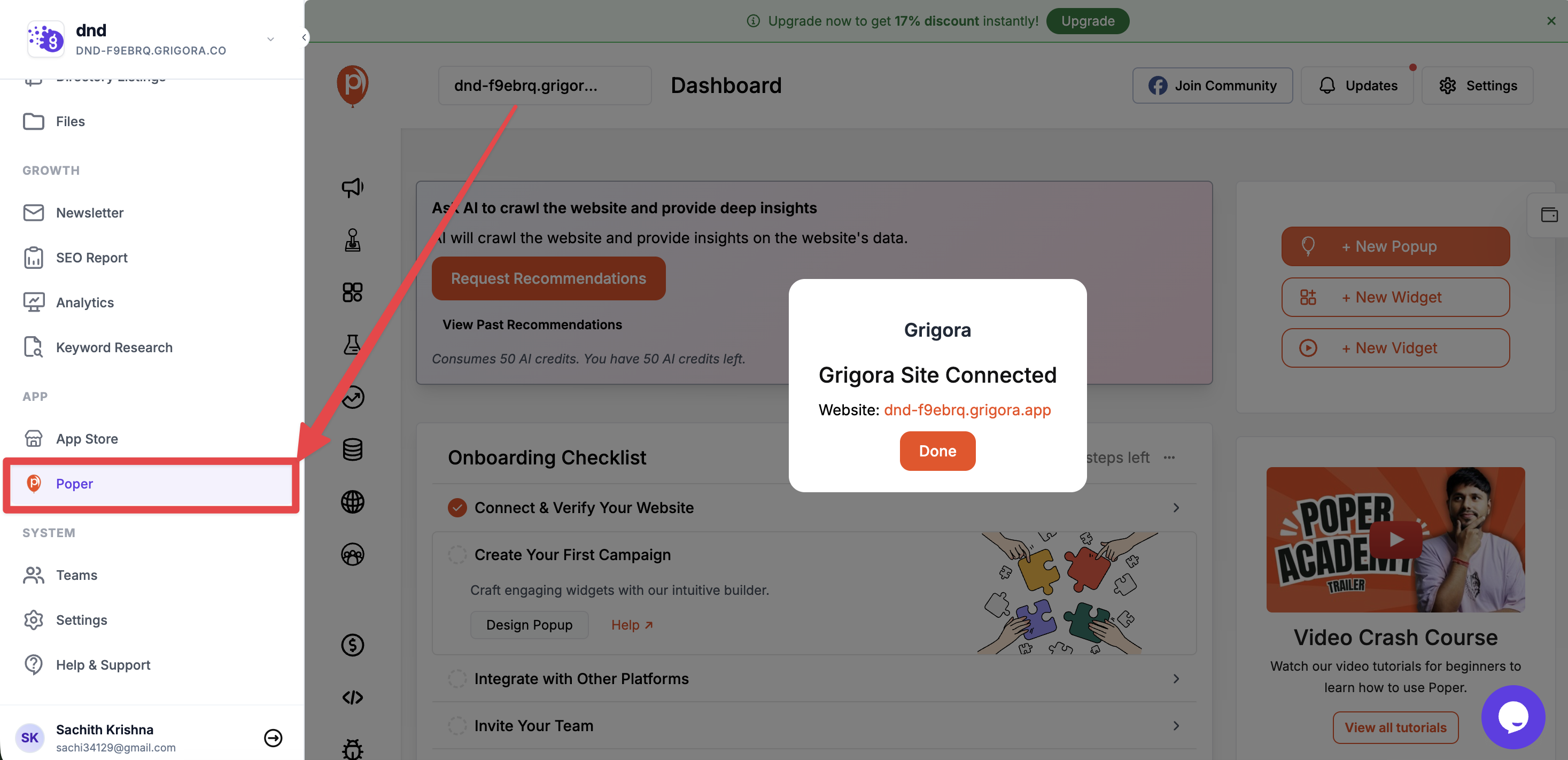
Your page should:
- Read
codeandstatefrom the URL and exchange them for an access token on your backend. - Use the token to call Grigora APIs (see Authentication).
- Work well at the size of the iframe (responsive layout; avoid assuming full window).
External dashboard
When you use an external URL, the user is sent to your URL in a new tab (or the same tab in the install flow) with code and state in the query string. They see your site directly, not inside Grigora. You handle the same token exchange and then show your full dashboard or config UI.
URL rules
- Use a full URL (e.g.
https://yourapp.com/dashboardorhttps://yourapp.com/embed/config). - Or a path starting with
/(e.g./embed/settings); when embedded, it is resolved relative to the Grigora host. - Use HTTPS and the same domain you’ll use in production so install and “Manage” links work for all users.
Behaviour for store (production) apps
For apps that are already approved and in production, changes to the dashboard page (and other app settings) are saved as a draft until you submit a new version for review. After approval, the updated dashboard configuration goes live.
Tips
- Embedded: Ensure your page allows framing and uses a responsive layout; avoid critical actions that require a full-window redirect unless you use external.
- External: Good for flows that need more space or your own full sign-in.
- Use the same URL structure you’ll use in production (HTTPS, correct domain) so installs and links work for users.