Embedded Scripts
Embedded scripts are snippets of code (e.g. analytics, chat widgets, or consent banners) that your app provides. When a site owner installs your app and connects a script, that snippet is injected into their site at the placement you choose—in the <head>, at the start of the <body>, or at the end. You define each script’s name, type, placement, and code in the Developer Portal.
Where to manage scripts
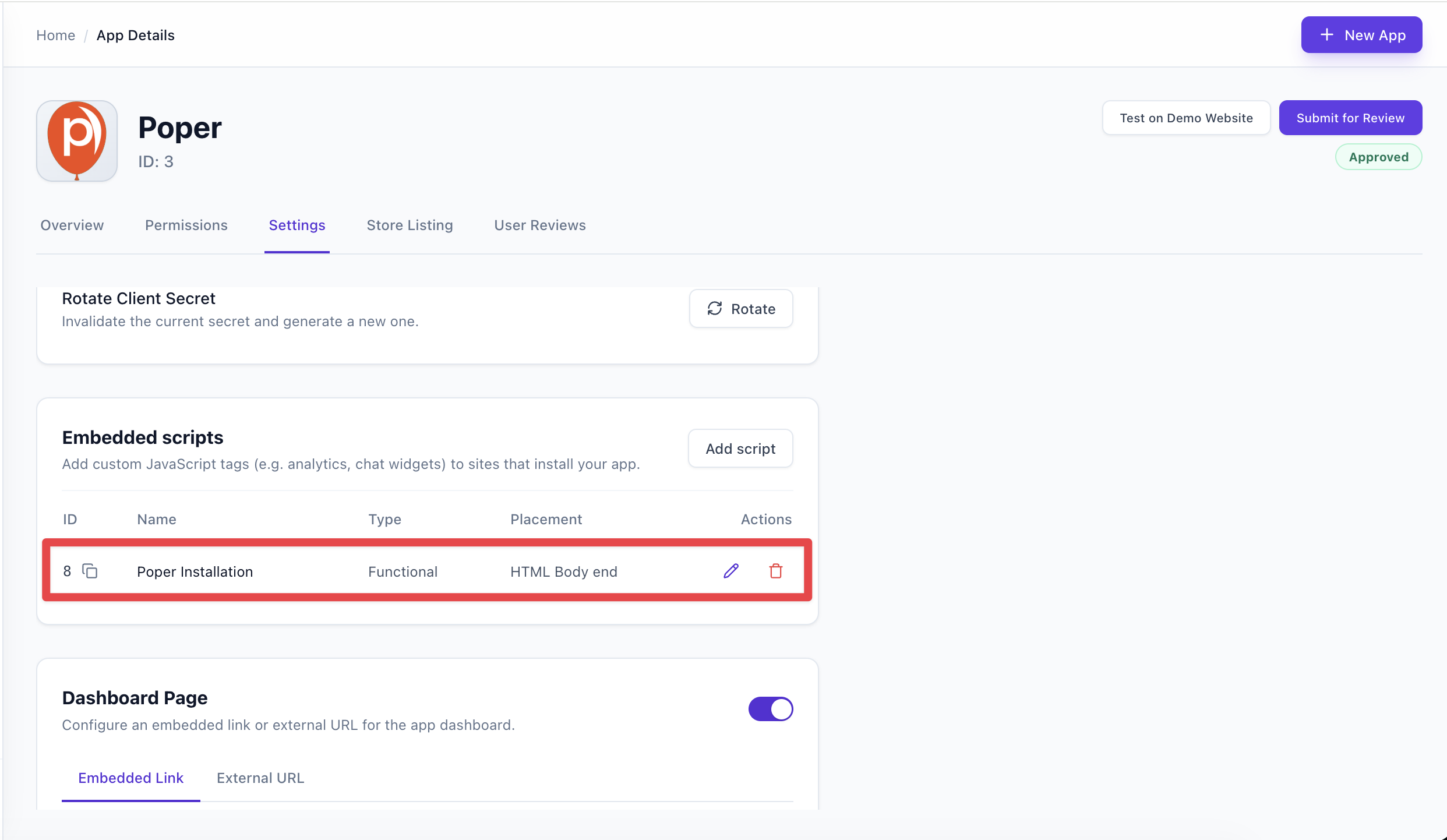
In the Developer Portal, open your app and go to the Settings tab. The Embedded Scripts section shows existing scripts. From here you can add a new script or open an existing one to edit or delete it.
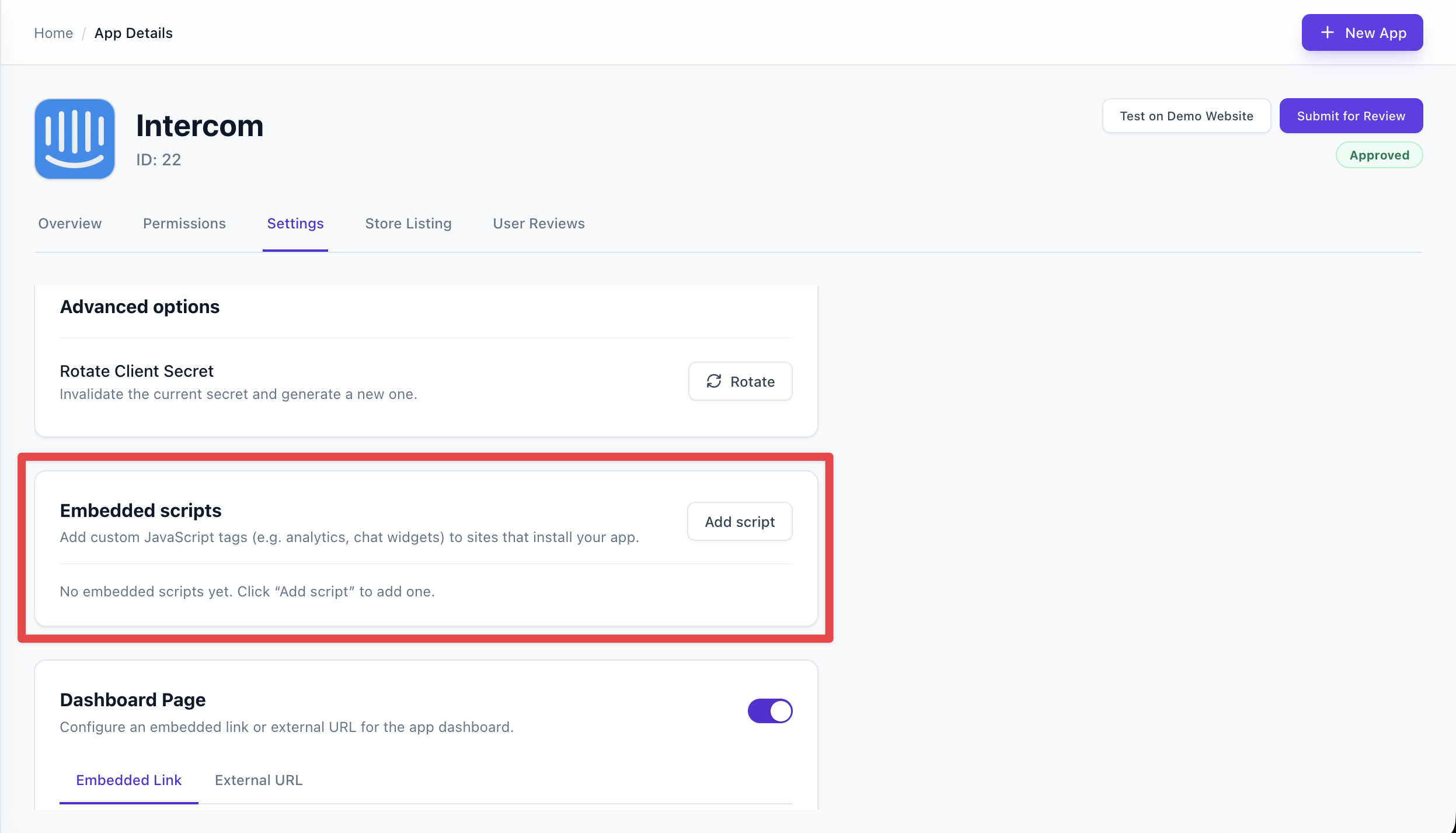
Click Add script to create a new embedded script.
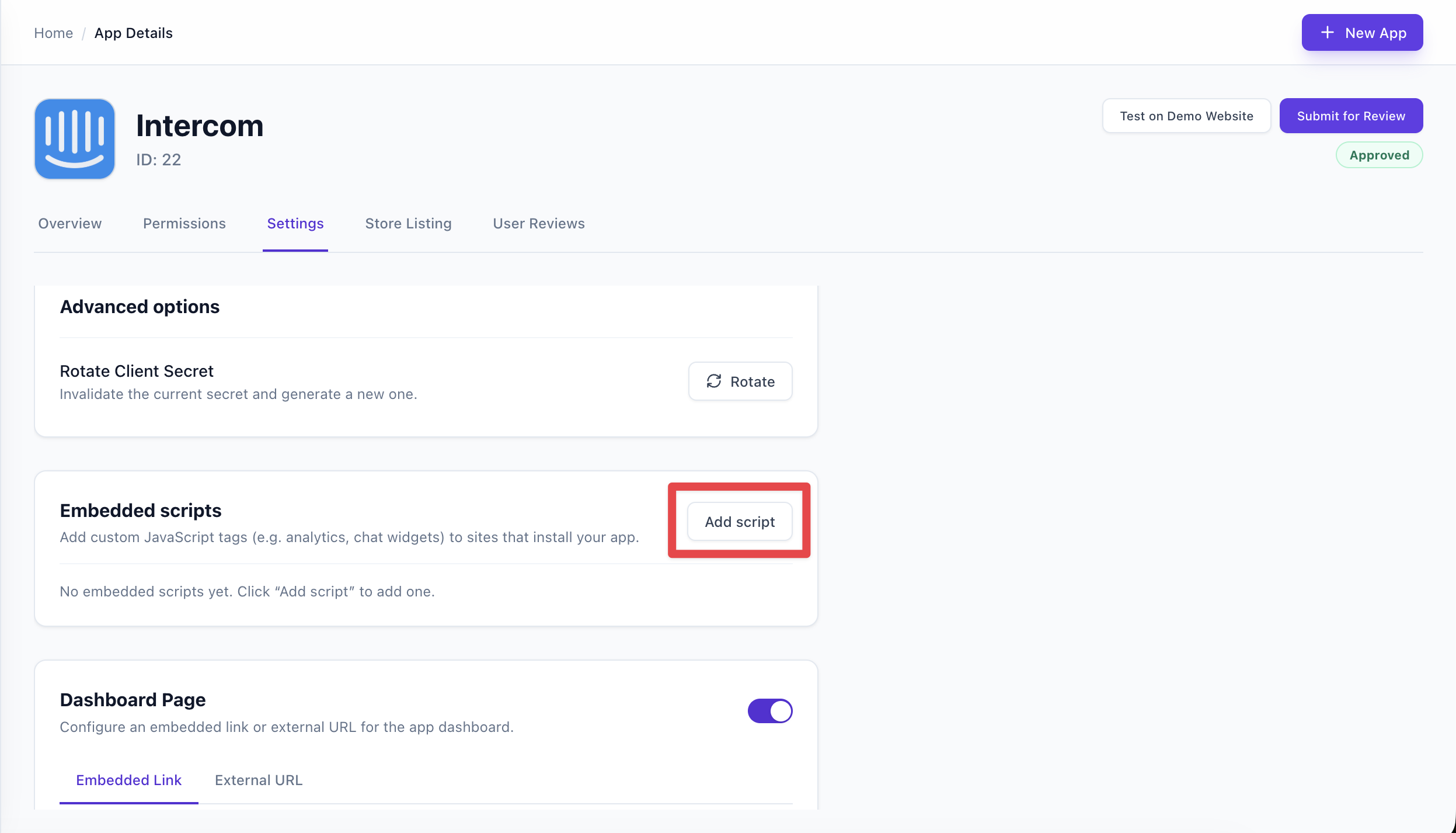
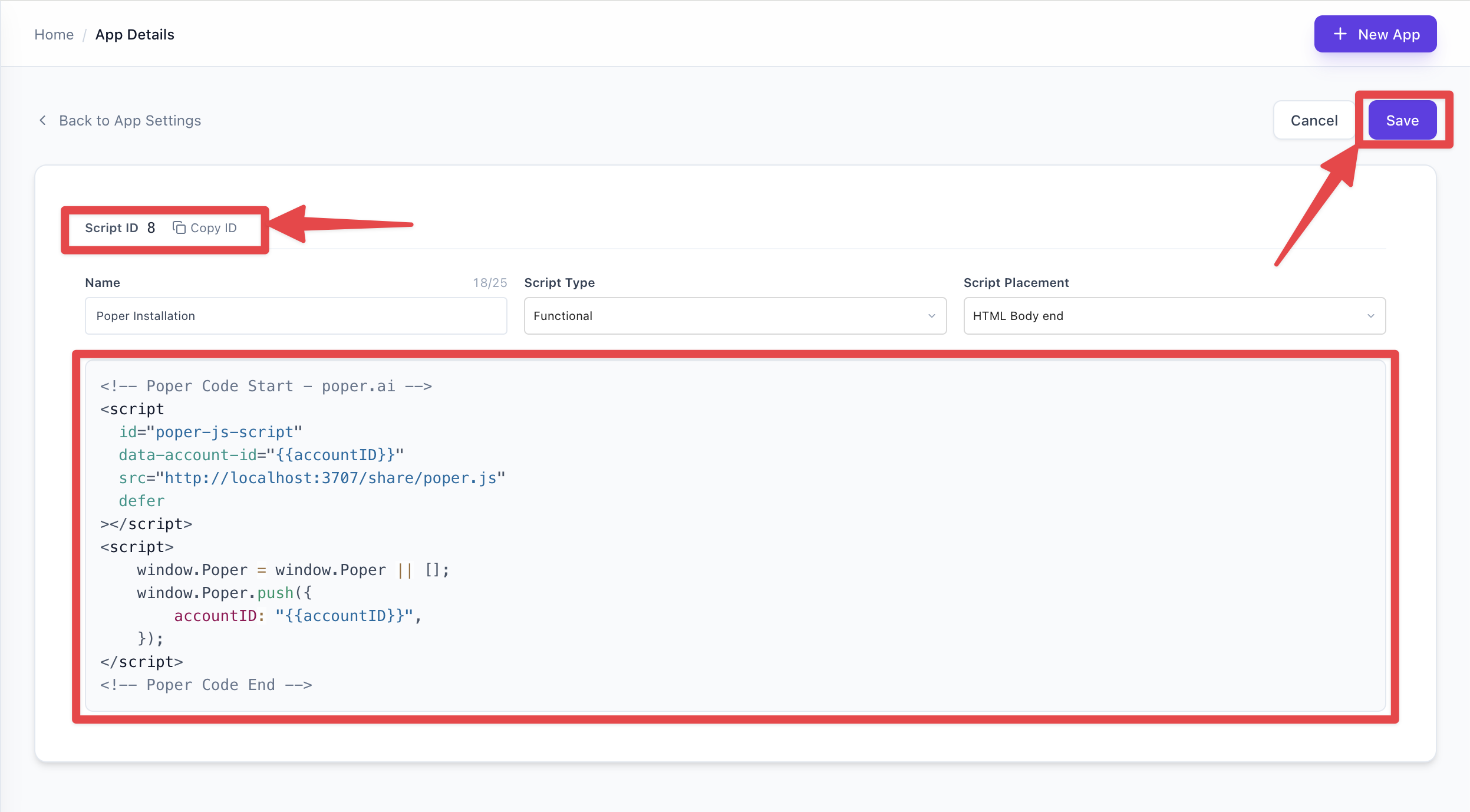
Adding or editing a script
On the script page you set:
- Name — A short label (e.g. “Analytics snippet”), required, max 25 characters. Shown in the site owner’s UI and when they manage connected scripts.
- Script type — Purpose of the script, used for transparency and consent: Essential, Functional, Analytics, or Advertising.
- Placement — Where the snippet is injected: HTML Head, HTML Body start, or HTML Body end.
- Code — The raw HTML/JS snippet (e.g. a
<script>tag or inline script).
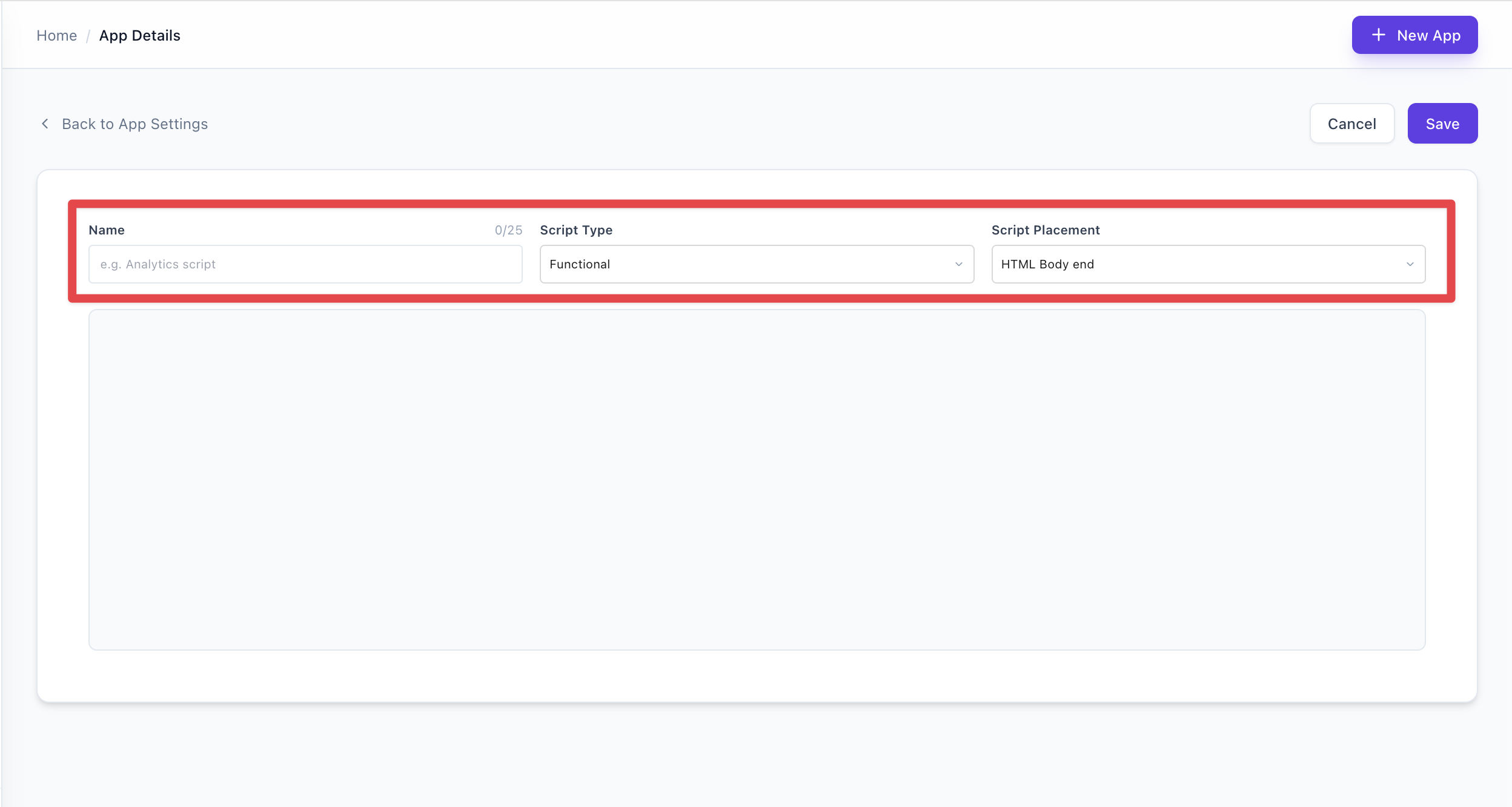
In the code area, paste or type your snippet. It is injected as-is into the site’s page at the chosen placement.
Save the script. After saving, you’ll see the script ID and the stored code; you can use the script ID in APIs or when managing connections.
Back on the app Settings tab, the Embedded Scripts list shows your saved script with options to Edit, Delete, or Copy ID.
Script type and placement
| Setting | Values | Description |
|---|---|---|
| Script type | Essential, Functional, Analytics, Advertising | Purpose of the script (e.g. analytics, ads). Used for transparency and consent. |
| Placement | HTML Head, Body start, Body end | Where the snippet is injected in the page. |
- HTML Head — Inside
<head>. - HTML Body start — Right after
<body>. - HTML Body end — Just before
</body>.
Using parameters in your script code
You can make your script configurable per site by using parameters. Parameters are key-value pairs that get substituted into your script code when it is injected.
How parameters work
-
Placeholders in code — In the script Code field, use placeholders with double curly braces:
{{keyName}}. For example:<script>
window.MY_APP_ID = "{{appId}}";
window.MY_ENV = "{{env}}";
</script> -
Where values come from — Values for
{{keyName}}come from:- Script-level defaults — Optional default parameters stored with the script (e.g. when creating/updating the script via the Developer API with a
parametersfield). - Per-project (connection) parameters — When a site owner (or your app on their behalf) activates the script for a project, you can send a
parametersobject. Those values are stored for that script + project and override or extend the script defaults.
- Script-level defaults — Optional default parameters stored with the script (e.g. when creating/updating the script via the Developer API with a
-
Merging — When the script is rendered on a site, Grigora merges script defaults and connection parameters (connection overrides defaults). Any
{{key}}in the code is replaced by the merged value; if a key is missing, the placeholder is left as{{key}}in the output. -
Use cases — Use parameters for things like:
- Site-specific API keys or IDs (
{{apiKey}},{{trackingId}}) - Environment (
{{env}}=productionorstaging) - Feature flags or options (
{{enableDebug}}=true)
- Site-specific API keys or IDs (
You set or update these per-project parameters when you activate the script via the API (see below).
Activating and managing scripts via the API
After a site owner has installed your app and authorized it (OAuth), your backend can activate (connect) scripts for their site, list scripts and their connection status, and deactivate a script. All of this uses the Grigora API v1 with the site owner’s OAuth access token (see Authentication).
Base URL: https://api.grigora.co/general/api/v1
Authentication: Send the access token in the header: Authorization: Bearer gri_at_xxx
Your app must have the Scripts scopes (scripts:read, scripts:embed, scripts:delete) granted for the authorization.
1. List scripts for a project
POST /scripts/list
Query: ?project_id=proj_abc123 (required)
Returns all embedded scripts for your app and, for that project, whether each script is connected and what parameters are in effect.
Example request:
const response = await fetch('https://api.grigora.co/general/api/v1/scripts/list?project_id=proj_abc123', {
  method: 'POST',
  headers: {
    'Authorization': `Bearer ${accessToken}`,
  },
});
const data = await response.json();
Example response (200):
{
  "project_id": "proj_abc123",
  "scripts": [
    {
      "script_id": 1,
      "id": 5,
      "parameters": { "appId": "site-42", "env": "production" }
    },
    {
      "script_id": 2,
      "id": null,
      "parameters": {}
    }
  ]
}
- project_id — The project (site) ID used for the request.
- script_id — Your script’s ID (from the Developer Portal or when you created the script).
- id — Connection row id for this script on this project (
oauth_app_embedded_scripts_project_ids.id).nullmeans the script is not yet connected (not activated) for this site. Use this when callingDELETE /scripts/connection/:connectionId. - parameters — Merged parameters (script defaults + connection overrides) for this script and project. Use these when rendering the script; you can also pass updated values when calling embed.
Errors: 400 if project_id is missing. 401 if the token is missing or invalid. 403 if the token is not authorized for that project_id.
2. Activate (embed) a script for a project
POST /scripts/embed
Body: { "scriptId": 1, "project_id": "proj_abc123", "parameters": { "appId": "xyz", "env": "production" } }
This connects the script to the project so it appears under “Connected scripts” for that site and the snippet will be injected on the site’s pages. You can pass optional parameters to store per-project values (they replace {{key}} in your script code).
Example request:
const response = await fetch('https://api.grigora.co/general/api/v1/scripts/embed', {
  method: 'POST',
  headers: {
    'Authorization': `Bearer ${accessToken}`,
    'Content-Type': 'application/json',
  },
  body: JSON.stringify({
    scriptId: 1,
    project_id: 'proj_abc123',
    parameters: { appId: 'site-42', env: 'production' },
  }),
});
const data = await response.json();
Example response (200): { "success": true }
Errors: 400 if scriptId or project_id is missing or invalid. 401 if the token is invalid. 403 if the token is not authorized for that project. 404 if the script is not found or does not belong to your app.
Calling embed again for the same script and project updates the stored parameters; the script remains connected.
3. Deactivate a script (remove connection)
DELETE /scripts/connection/:connectionId
Removes the connection between the script and the project so the script is no longer injected on that site. Use the id (connection ID) from the list response for the script you want to disconnect.
Example request:
const connectionId = 5; // from scripts/list response (script's "id" when connected)
const response = await fetch(`https://api.grigora.co/general/api/v1/scripts/connection/${connectionId}`, {
  method: 'DELETE',
  headers: { 'Authorization': `Bearer ${accessToken}` },
});
const data = await response.json();
Example response (200): { "success": true }
Errors: 400 if connectionId is not a valid positive integer. 401 if the token is invalid. 403 if the connection does not belong to your app. 404 if the connection is not found.
Workflow
- Define scripts in the Developer Portal (name, type, placement, code with optional
{{param}}placeholders). Note each script’s script ID (e.g. from Settings → Embedded Scripts → Copy ID). - Site owner installs your app and authorizes it (OAuth); your backend receives an access token and the list of authorized
project_ids (e.g. fromGET /token/introspectorGET /project/list). - List scripts for a project with
GET /scripts/list?project_id=...to see which scripts exist and which are already connected (idnot null) and their current parameters. - Activate a script for a site with
POST /scripts/embed(scriptId, project_id, and optional parameters). The script then appears as connected and is injected on the site’s pages; parameters are used to replace{{key}}in the code. - Update parameters by calling
POST /scripts/embedagain with the same scriptId and project_id and new or updatedparameters. - Deactivate when needed with
DELETE /scripts/connection/:connectionIdusing the connectionidfrom the list response.
Approved (production) apps
For apps that are already approved and in production, adding or editing scripts is stored as a draft until you submit a new version for review. After approval, the new or updated scripts become active for installs.
Scopes
To allow your app to manage or connect scripts on behalf of users, ensure the app has the relevant Scripts scopes: scripts:read, scripts:embed, scripts:delete (as needed). These are configured in the app’s Permissions (Settings).